8 product photography angles and which to skip
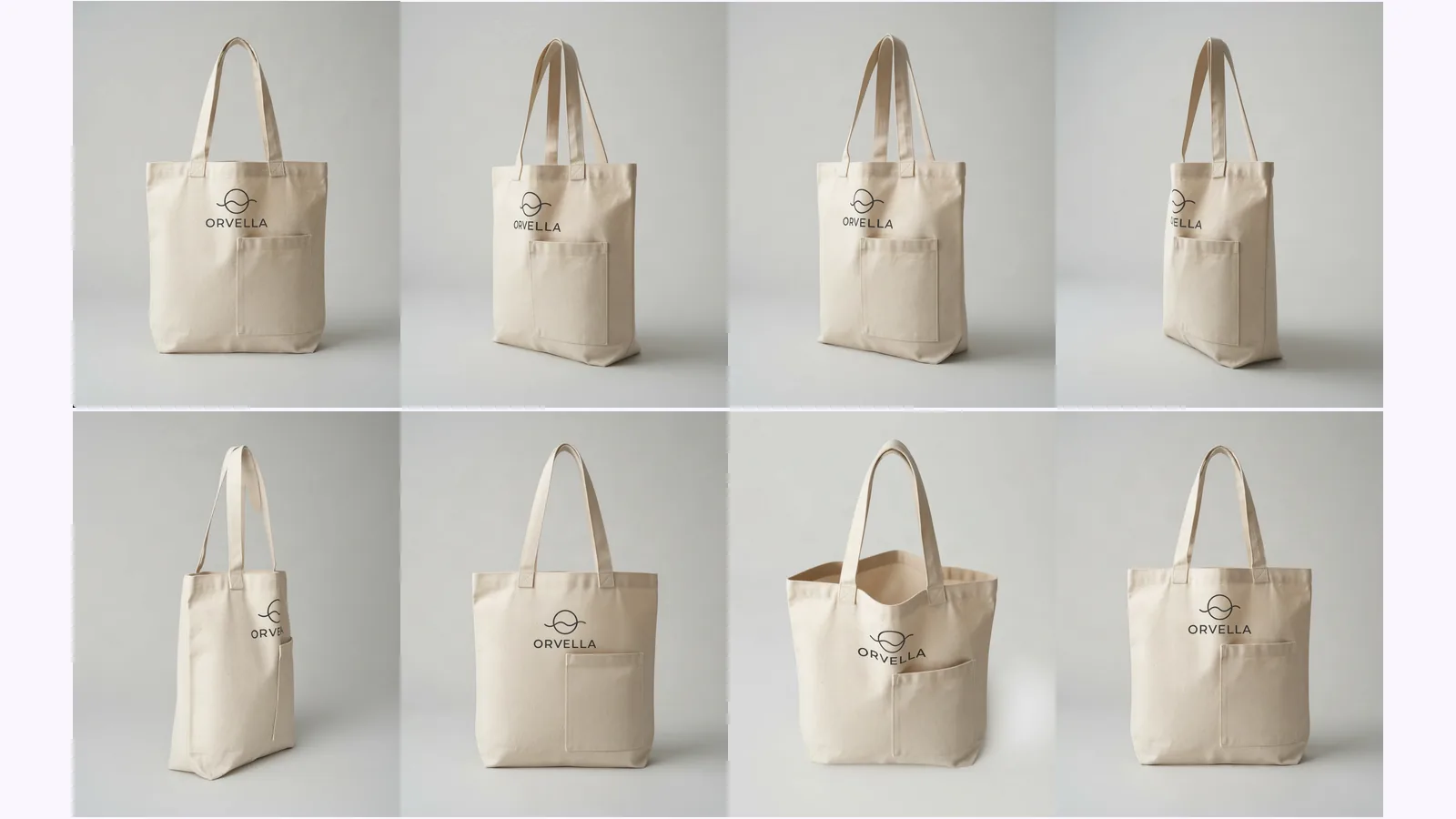
What each shot answers, which to skip by product type, and where AI-made views drift. Shown on one tote, with a pick table for bottles, shoes and bags.
Shopify product image size: 2048×2048 px square is Shopify's pick. The size table, how many images a product holds, which angles to upload, and a checklist.
The Shopify product image size to aim for is a 2048 × 2048 px square, which Shopify's help center says usually displays best. Zoom needs more than 800 × 800 px, files can be up to 5000 × 5000 px (25 megapixels) and under 20 MB, and one product can hold up to 250 media. This guide gives the size table, then the angles to upload, in which order, and a checklist.
Key takeaways
Square 2048 × 2048 px is Shopify's recommendation: its help page says "For square product images, a size of 2048 x 2048 px usually displays best". Zoom turns on above 800 × 800 px. The ceiling is 5000 × 5000 px, or 25 megapixels, and each file must stay under 20 MB.
Shopify's help page on product media types gives the 5000 × 5000 px and 25 MP ceiling, the 20 MB limit, the 2048 × 2048 recommendation, and says PNG displays best, then JPEG (checked 2026-09-26). Shopify's blog on image sizes (updated 2026-06-30, checked 2026-09-26) adds the zoom threshold over 800 × 800 px, suggests product photos of around 300 KB, and recommends WebP.
Those two pages differ on format, so don't treat either as the last word: see the FAQ below. The table puts the numbers in one place.
| Image type | Size | Ratio | File weight | Source |
|---|---|---|---|---|
| Product image (recommended) | 2048 × 2048 px | 1:1 | Around 300 KB for the web | Shopify Help; Shopify blog |
| Zoom threshold | Over 800 × 800 px | Any | — | Shopify blog |
| Maximum | 5000 × 5000 px (25 MP) | Any | Under 20 MB | Shopify Help |
| Media per product | Up to 250 images, 3D models or videos | — | — | Shopify Help (adding media) |
| Collection image | 1,024 × 1,024 px | 1:1 | — | Photoroom's Shopify guide (third party, 2026-07-30) |
| Shopify's built-in generator | About 1 MP by default (roughly 1000 × 1000 px for a square) | — | — | Shopify Help (Magic media) |
Theme settings can change how an uploaded image displays, so check your own store. If you're making the images from one photo, the product turnaround template makes every angle at the size your plan allows ("Where it fails" below says how to check it). More store guides are under product photo guides.
Square, 1:1, and the same ratio for every featured image. Shopify's help page advises a consistent aspect ratio for featured images, so collection grids line up and the theme doesn't crop or stretch some of them. Square also matches the 2048 × 2048 recommendation, so there is nothing to recalculate.
Mixing portrait and landscape images makes themes crop or pad them differently, and Shopify Community threads we found discuss mixed orientations blurring. They were unresolved, so we can't say what your theme will do: upload a test product and look at the collection page.
Up to 250 images, 3D models or videos per product. Shopify's help page on adding media says the limit can't be raised. You'll never need that many: most products are well served by five to eight images, which is the range we argued for in product photography angles.
Flat or symmetric items need fewer. Add a view only when it answers a question a shopper would otherwise ask.
Lead with a clean front on a plain background, follow with 3/4 views, add the back and a detail, then lifestyle shots. This is our pick, not a Shopify rule. Products with depth, such as shoes or bags, often lead with a 3/4 view because it shows two sides at once.
A full set from the Product turnaround template covers front, 3/4 left, 3/4 right, left side, right side, back, above and below. That is 8 views: your upload is one and 7 are generated. We ran a matte sage-green ceramic planter with a small stamped leaf logo through it. The planter is an image made with Nano Banana, not a real product, and we did not upload any of these images to a Shopify store.
Looking at each file, the shape broadly held. The straight sides, the rolled rim and the matte sage glaze read as the same pot in every view. The details are where it slipped:
For a store gallery the background and light differences matter as much as the stamp: a gallery reads as one set when those match (checklist line 4). We didn't try to fix them. We'd re-run or replace such a view before uploading it.
For a store page, a sensible order is:
Before you publish any generated view, compare it with the real product. The six checks are in how to check an AI product photo, and an earlier test of where views drift is in our product angle test.
Yes, for some jobs. Shopify's help page on Magic media generation says it is available on all Shopify plans at no additional cost "for a limited time". It offers solid-colour backgrounds, a prompt-based "Generate" and outpainting, and its default resolution is capped at 1 megapixel (Shopify Help, checked 2026-09-26). It adds an invisible watermark to generated images.
Where it wins: it's built into the admin, costs nothing extra right now, and is fine for a background swap. Where it doesn't fit: 1 MP is below the 2048 × 2048 Shopify itself recommends, and its documented tools don't include making new angles of a product. That is the gap a set of angles fills.
Run these eight lines on each product before you publish. Print it or copy it into your store notes.
MultiAngle makes fixed views of one product at a time, and the file size depends on your plan.
This is not a recolour test. The terracotta planter is a second Nano Banana image, so its stamp (an oak leaf in a dark ring) and its speckled surface differ from the sage one. What it shows is what a separate run does with its own input:
Run each colour on its own and check each set against its own product, which is checklist line 7.
Photograph the product from the front on a plain background, with the whole product in frame, and upload it to Product turnaround. A full set costs 7 credits. The free plan gives 4 credits, on the 1st of each month (UTC), so a full set needs a paid plan or a top-up. Downloads come as PNG, JPEG and WebP, plus a ZIP of the set.
For credits and plans, see the pricing page. For online stores generally, see our use cases for online sellers and the AI product photography guide.
Make every angle of a product from one photo
Shopify's two pages differ. Its help page says PNG displays best, then JPEG, while its blog recommends WebP and files around 300 KB (checked 2026-09-26). Pick one format for the whole gallery, keep files light, and look at the result on your own theme. MultiAngle downloads as PNG, JPEG and WebP.
We can't give you a single cause. Shopify Community threads report images displayed smaller than uploaded, with one title reading "Product photos (already sized within recommendations) are being shrunk automatically to 1800px", and the ones we found were unresolved. Themes resize images for display, so check your theme's settings and upload at the recommended size.
We found no background rule in the Shopify pages above. Consistency is what matters: the same background and light across a product's gallery, and the same ratio on featured images, so the grid reads as one store. Amazon's pure-white rule is a marketplace rule, not a Shopify one.
Mostly. The white main image and the angles work on most stores, but check sizes: the Amazon listing set's main image targets a pure-white JPEG, square, 1000–2000 px, product filling about 85–95% of the frame, which can fall below Shopify's 2048 × 2048 recommendation, though above the 800 × 800 zoom threshold. The Amazon rules are in Amazon product image requirements, and the Amazon listing set builds the set.
More on this topic: Product photos from every angle.
What each shot answers, which to skip by product type, and where AI-made views drift. Shown on one tote, with a pick table for bottles, shoes and bags.
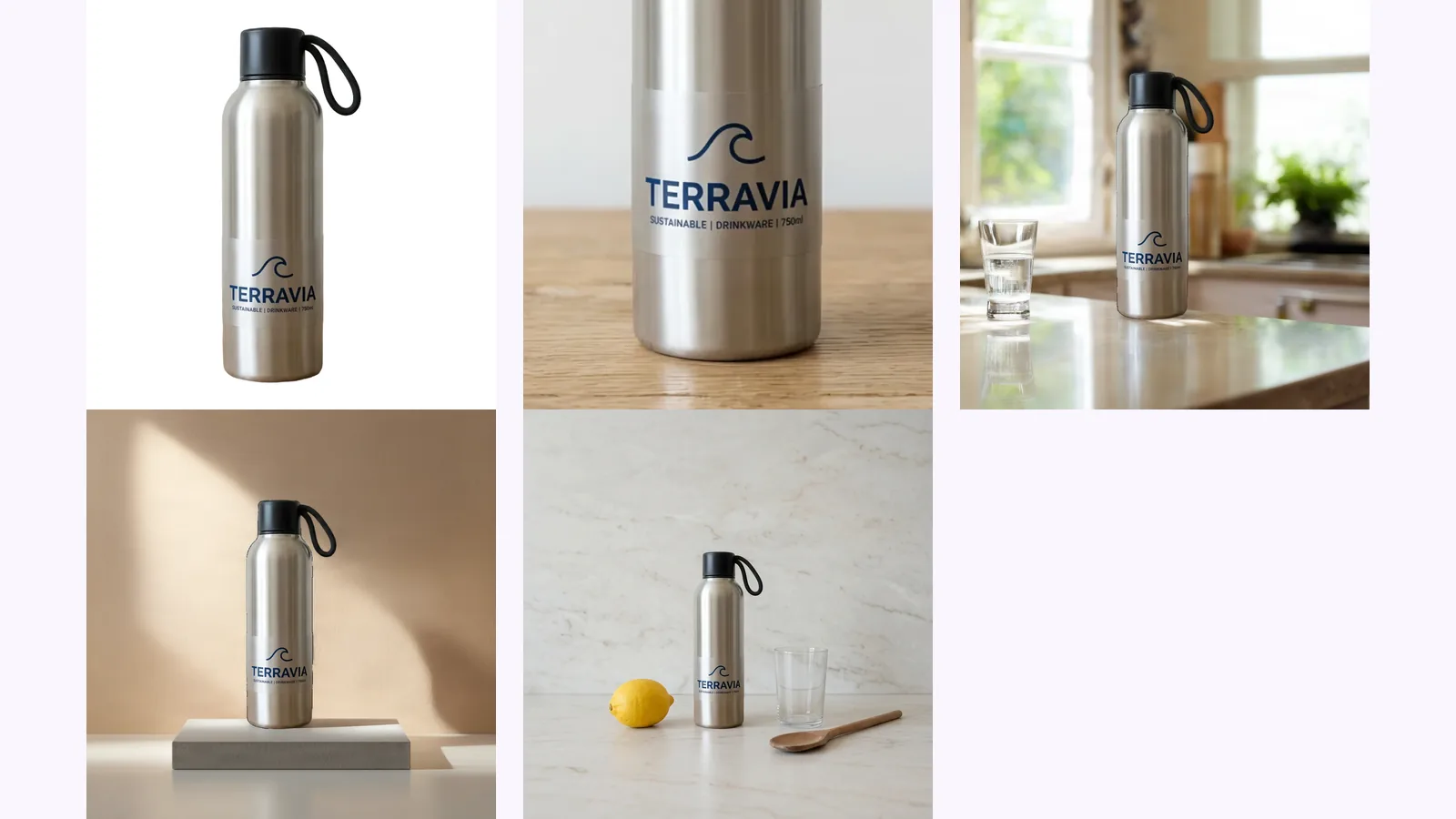
Amazon's image rules, quoted from Amazon and dated: 500–10,000 px, RGB 255 white, 85% fill, the AI-people tag, and one product taken through a full set.
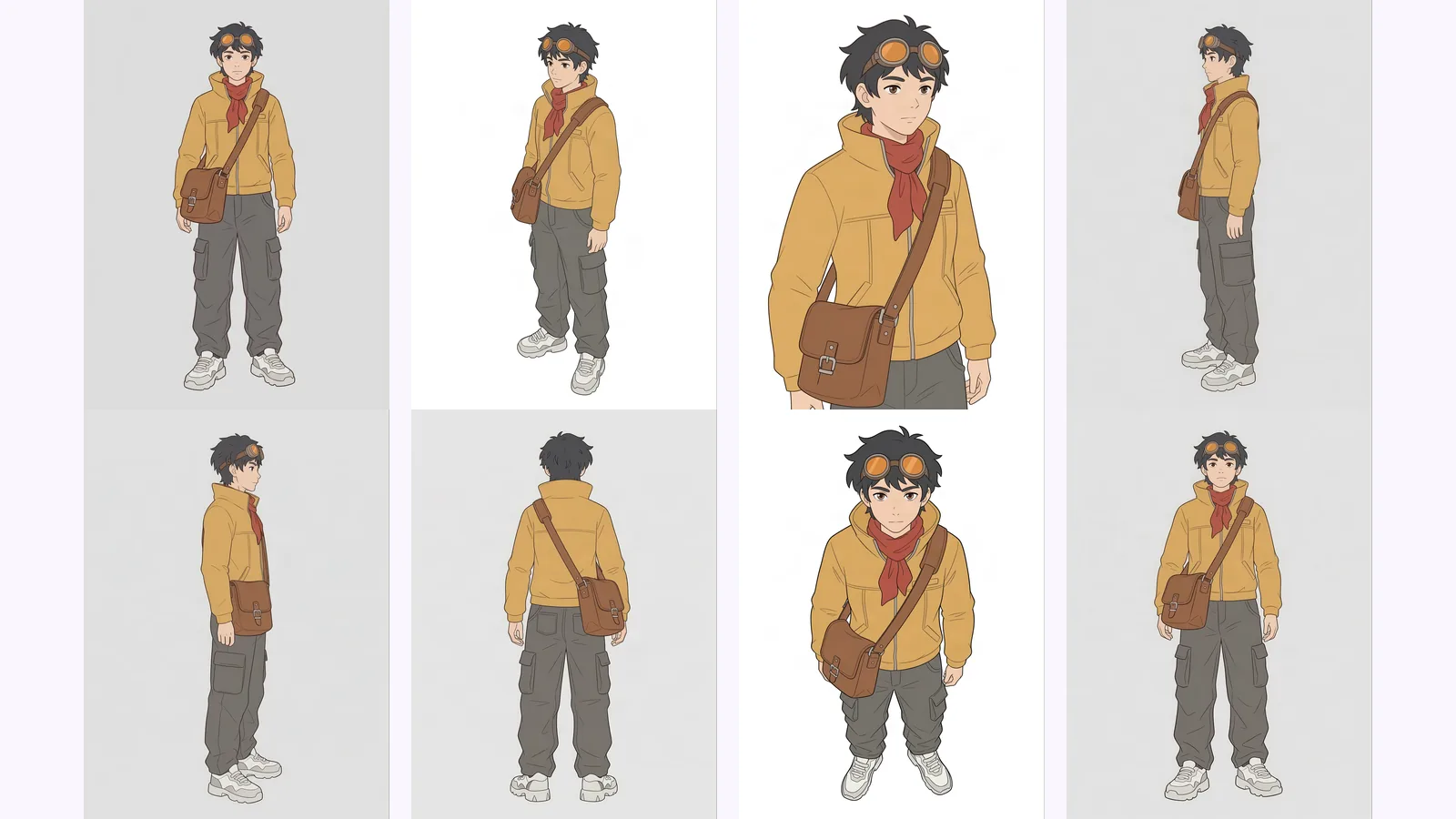
Multi-view images for 3D: the views Meshy, Hunyuan3D-2mv and Tripo take, how to make 8 consistent views from one drawing, and how to check them.