LinkedIn headshot tips: 5 checks before you upload
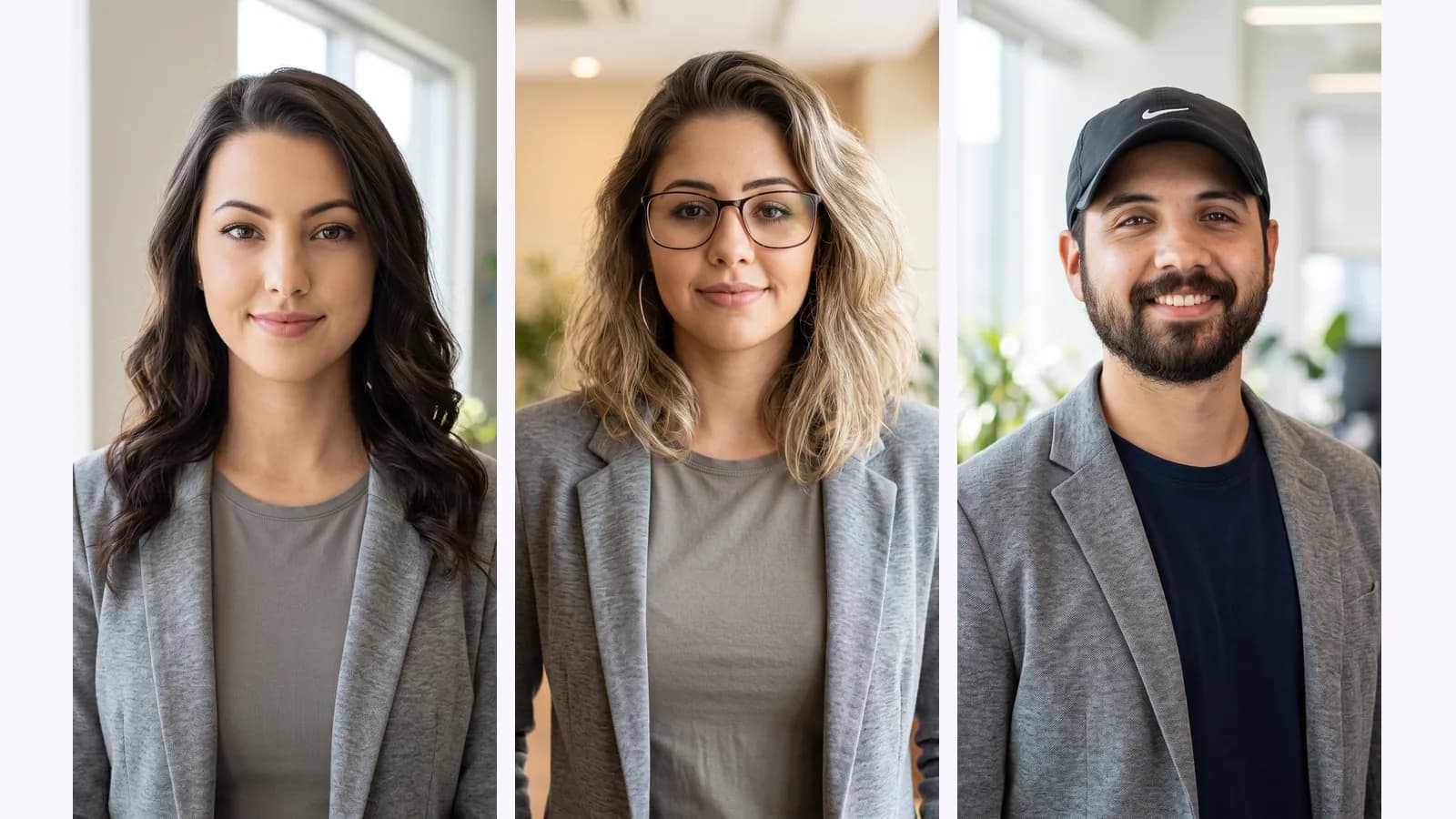
LinkedIn headshot tips as five checks: likeness, face size, being alone, background and light, tried on 4 AI headshots from three photos.
LinkedIn headshot background guide: plain or blurred, which colour to pick, what the circle crop hides, and what AI studio, office and outdoor looks showed.
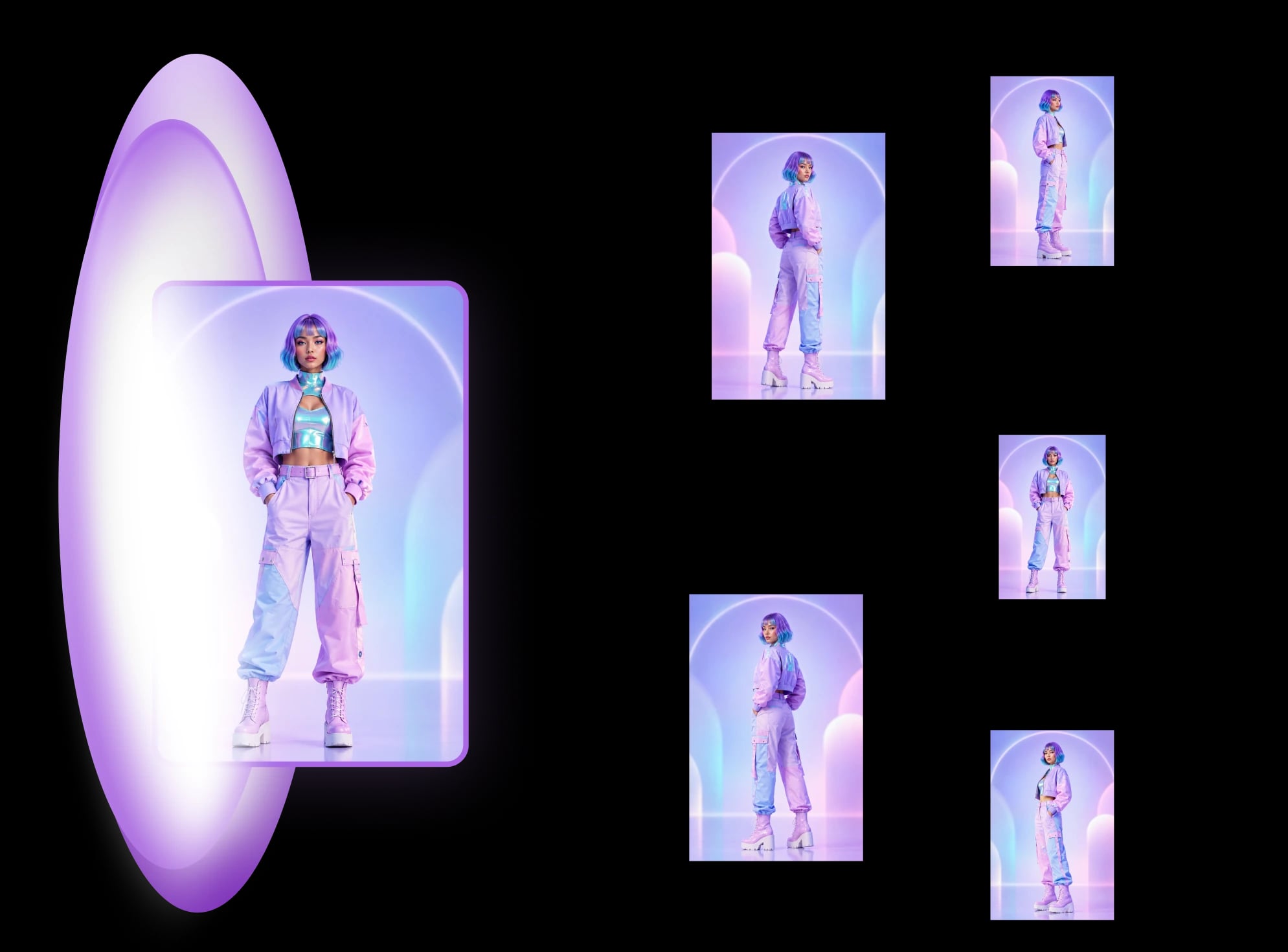
The best LinkedIn headshot background is a plain or softly blurred one that does not compete with your face. LinkedIn's own guide recommends a simple background (checked 2026-10-25), and light grey is the usual safe pick. Below: plain against blurred, which colour, what LinkedIn's circle crop hides, and the backgrounds our AI LinkedIn headshots from one selfie recipe returns, run on two stock photos.
Key takeaways
A plain or softly blurred one. LinkedIn's guide says "a simple background can help ensure that you're the focal point", and suggests taking the picture "outside in nature or against a painted wall" (LinkedIn Talent Blog, 2024-08-01, checked 2026-10-25). BetterPic and Aragon, both AI-headshot vendors, favour a plain light neutral and treat a blurred office as the main alternative (checked 2026-10-25).
LinkedIn names no colour, and its Help page on profile photos says nothing about backgrounds. Its main rule is that "your profile photo must reflect your likeness" (checked 2026-10-25). Everything about colour and style below is advice, not a LinkedIn requirement. For the rest of the checklist, such as face size and size in pixels, see LinkedIn headshot tips: 5 checks before you upload.
Plain is the safer pick and blurred is the usual second. A plain backdrop gives your face nothing to compete with. A blurred office hints at a workplace, but it only works if the blur is strong enough that the room stops reading as clutter.
BetterPic rates solid colour "Very High" for professionalism and a blurred office "High", on its own scale (BetterPic, updated 2026-10-15, checked 2026-10-25). Aragon pairs the blurred office with corporate, consulting, sales and leadership profiles, and names "distracting objects" as its main risk (Aragon, "LinkedIn headshots", checked 2026-10-25). Both pages are written by companies that sell AI headshots, so we use them for what they agree on and not for their ratings.
Light grey, off-white or beige for most jobs. Aragon says light neutrals suit most industries, that very dark grey can look heavy, and that muted blue or charcoal suits tech and marketing; bright colours can look artificial (checked 2026-10-25). BetterPic repeats the one rule that matters more than the shade: the background should not clash with what you wear.
Our own suggestion, not a source's: put a dark jacket against a lighter backdrop and a light top against a darker one, so your outline stays clear when the photo is small.
In our two runs the studio looks gave the cleanest background and a larger face, and the office and outdoor looks gave a busier frame and a smaller face. The LinkedIn headshots recipe returns 4 looks from one photo: Studio · Classic, Studio · Turned, Office and Outdoor. We ran it once on each of two free stock photos from Unsplash.
| Background | Suits, per the vendors (checked 2026-10-25) | What we saw in our outputs |
|---|---|---|
| Plain studio | Most roles; finance, law and consulting | A light grey gradient in both studio looks, with the face larger in the frame than in the other two |
| Blurred office | Corporate, consulting, sales, leadership, tech | A bright room with windows and plants; the face is smaller, and a bright window edge sits at the side of the frame |
| Outdoor | Real estate, coaching, consulting, creative work | Blurred green and buildings; the face is smaller, and green sits right up against the hair |
| Brand colour | Founders and teams (Aragon only) | Not offered by the recipe |
The headshot checklist saw the same drop in face size on a third photo. We ran each photo once, so this is two examples, not a result.
LinkedIn shows your photo as a circle (Aragon says the same, checked 2026-10-25), so the corners of a square image are cut off and the background becomes a ring around your head. At thumbnail size a plain backdrop reads as a soft halo, and a busy one reads as patches of light and colour.
At 72 px and below in our crop, the two studio looks stay a clean grey around the head and shoulders. The office look puts bright window panes and plants around the face. The outdoor look is a green ring with a bright patch of sky at the top, and the dark hair still stands out against it. Judge your headshot at the small size, not full size, before you upload. We cut the square from the top of the output, not from the app's 1:1 file, so your own crop may sit a little differently.
No. LinkedIn's background photo is the banner that "appears behind your profile photo in the introduction section" (LinkedIn Help, checked 2026-10-25). It is a separate image. LinkedIn's guide says that if you want to show your workplace or a team photo, that "might be better for your background photo", which leaves the headshot free to stay plain.
Yes, with a background remover or a photo editor, but not with MultiAngle. The recipe makes new headshots from your photo in 4 fixed looks. It does not keep your photo and swap what sits behind you, and you cannot choose the colour.
If you want your own photo on a new backdrop, an editor does that; if you want a real studio backdrop, what a photographer costs against AI has the numbers. Pixelcut, for example, lists limited background removal on its Free plan, and its Pro plan at $10 a month, or $8 a month billed yearly (Pixelcut pricing, checked 2026-10-25). Check the hair edge and the direction of the light afterwards: a studio backdrop behind a face lit from a window looks pasted on.
Most of what is written about this is opinion, and ours is too. These are the limits to keep in mind.
Both inputs are free stock photos of people we do not know, and the outputs here show our recipe's results, not customers. If you are in one of them and want it taken down, tell us and it goes.
Try 4 LinkedIn headshot backgrounds from one photo
Photo credits: the AI outputs, including the cover, were made from Unsplash photos by Michael Dam and Vinicius Wiesehofer.
Light grey is the most common recommendation, with off-white and beige close behind (BetterPic and Aragon, checked 2026-10-25). Pick one that does not clash with your clothes. LinkedIn sets no colour rule.
Either works. A solid background is the safer pick for any role, and a blurred office suits corporate profiles if the blur is strong. A sharp, busy room behind you is the one to avoid.
LinkedIn's guide lists "outside in nature" as a simple option. Aragon says to use open shade or soft light, and to avoid busy streets, landmarks and harsh midday sun (checked 2026-10-25). It suits client-facing and creative roles better than conservative ones.
LinkedIn's guide gives 400×400 to 7680×4320 pixels, with an 8 MB maximum (LinkedIn Talent Blog, 2024-08-01, checked 2026-10-25). The photo is shown as a circle, so keep your face away from the corners.
More on this topic: AI LinkedIn headshots from one selfie.
LinkedIn headshot tips as five checks: likeness, face size, being alone, background and light, tried on 4 AI headshots from three photos.
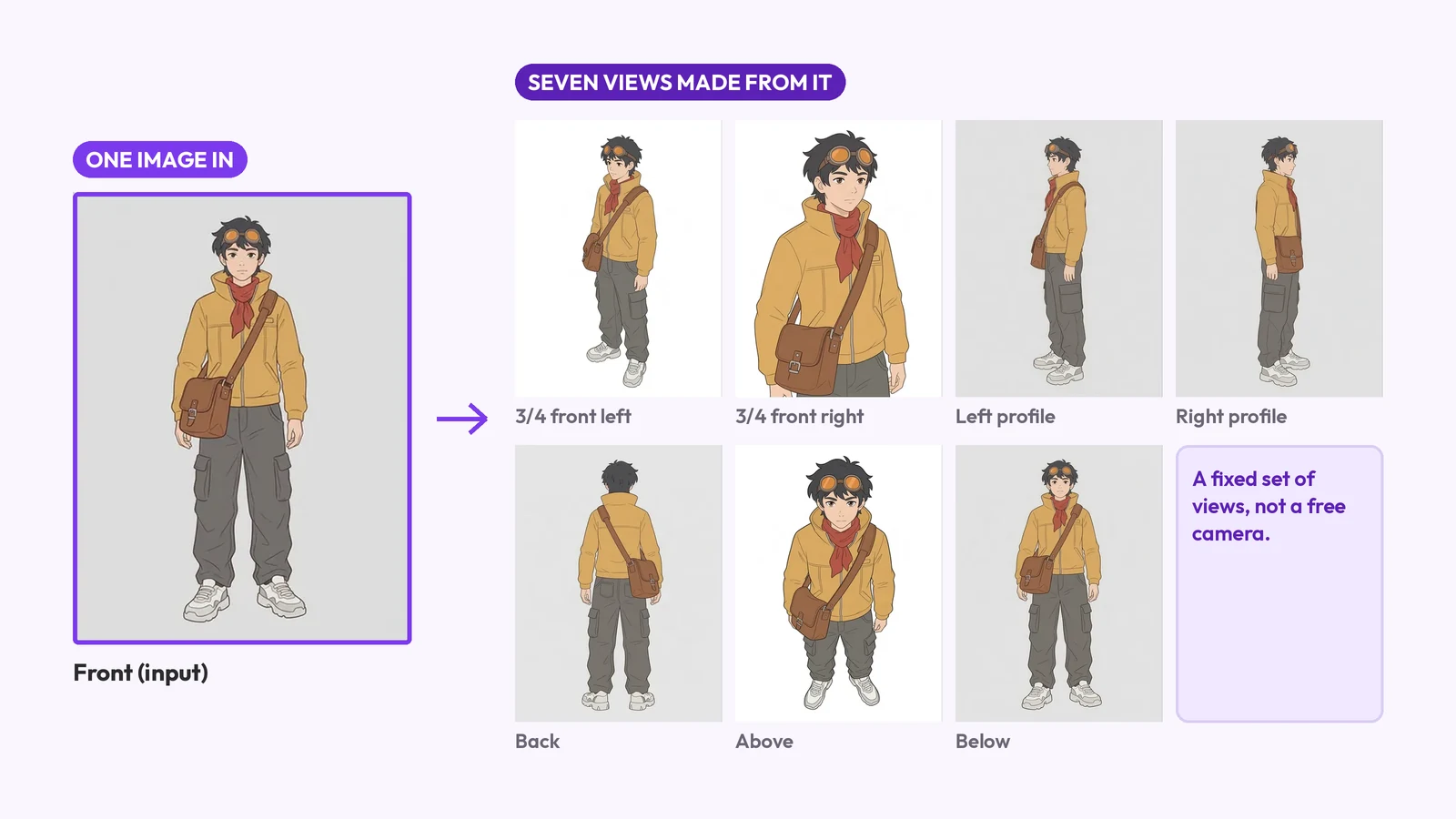
An avatar template is a profile-picture design, a game body, an AI restyle or 8 views of one character. What each is, and how to make the last.
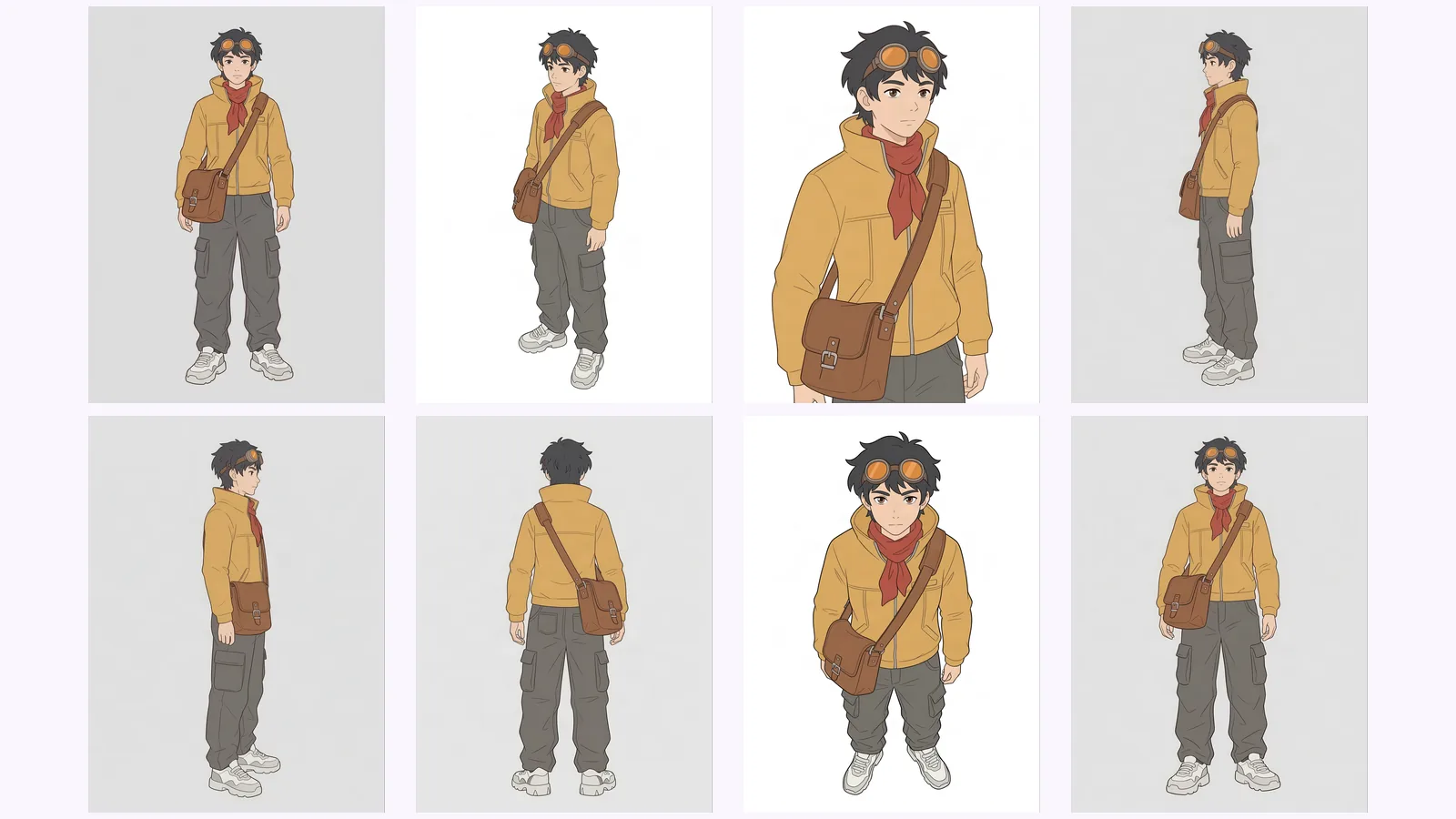
Keep an AI character consistent across angles: lock one reference, generate every view as one set, then check each view against a short list of anchor traits.