Virtual staging disclosure: what agents must label
Do you have to disclose virtual staging? What California AB 723, CRMLS, Stellar MLS, NAR and Wisconsin say, quoted and dated. General info, not legal advice.
How to virtually stage an empty room: shoot one level corner photo, stage it, then check every change against the original. One room shown in 4 styles.
Virtual staging an empty room works best from one level, wide photo taken from a corner. Upload it, pick a style, and before you list it, compare the staged image with the original line by line. That comparison is the step most guides skip. Below: how to shoot the room, one empty living room staged in all 4 MultiAngle styles from the same camera position, what to check, and what to disclose.
Key takeaways
Take one level, wide photo of the empty room from a corner, upload it to a virtual staging tool, choose a style, then compare the staged image with the original before you publish. Walls, windows, floor and fixtures should be unchanged. Only the furniture should be new, and it should fit the room.
The whole job, in order:
MultiAngle's virtual staging for empty rooms covers steps 2 and 4 in one run: it returns every style from your photo's camera position, plus the disclosure copies. Step 3 is yours, whichever tool you use.
Stand in a corner at about chest height, hold the camera level so vertical lines stay vertical, turn the lights on, open the blinds, and keep plenty of floor in the frame. The staging tool can only place furniture on floor it can see, and it has to judge scale from the room's lines.
What makes a poor input: a tilted camera (walls lean, so furniture leans with them), a view through a doorway (little floor, one wall), and a frame that cuts off the floor.
MultiAngle's Virtual staging recipe returns your room in 4 styles: Contemporary, Scandinavian, Mid-Century Modern and Bohemian, all from the camera position of your photo. Keeping the camera fixed matters because buyers compare the room, not the style. Walls, windows and floor should match in every version, so the only thing that changes is the furniture.
It also makes the styles easy to judge side by side. The list is short, though: dedicated staging subscriptions offer more styles and room types, so if you need a look that isn't on it, one of them may fit better.
The app read this room as a bedroom, so we switched the room type to living room before running. It is one click, and it matters: the room type decides what gets placed. In our view the Scandinavian version suits this small, bright room best, because it keeps most of the floor visible. Two styles put furniture against the edge of the frame: the black shelf in Contemporary is cut by the right edge, and the yellow sofa in Mid-Century Modern runs off it. The staged files came back at 2512 × 1685 px on the Studio plan, from a 1264 × 848 px photo.
It can change things that are not furniture: window frames, outlets, vents, floor transitions, light fittings, even a stain on the floor it decides to clean up. Put the original and the staged image side by side and go through a fixed list. Anything other than furniture that changed must be fixed or the image dropped before listing.
We ran the checklist on all four styles of this one room. The window (frame and view), the ceiling light, the door, the trim and the floor material were the same in every style. The floor vent stayed in place in Contemporary, Scandinavian and Bohemian; in Mid-Century Modern an armchair and a sofa stand in front of it. The wall outlet on the left wall is hidden behind furniture in all four. We found no fixture that had been changed, moved or removed. That is one room and one run per style, not a guarantee for your photo: run the checklist every time.
Pick by what you need most: price per room, a wider style range, or a human placing furniture to scale. With AI tools you rerun a room yourself; human services charge per image and handle revisions by hand. Competitor prices come from each vendor's own page.
| Option | Price (checked 2026-09-26) | Who places the furniture | Styles | Disclosure copies in the download |
|---|---|---|---|---|
| MultiAngle Virtual staging | 4 credits for all 4 styles of one photo | AI | Contemporary, Scandinavian, Mid-Century Modern and Bohemian | Yes: a labelled copy, a clean copy, and your original with disclosure text |
| Virtual Staging AI | $16 a month for 6 photos, up to $79 a month for 150 | AI | A wider range | Not checked; ask the vendor |
| Spacely AI | Free plan with 40 free trial credits, no watermark | AI | A wider range | Not checked; ask the vendor |
| BoxBrownie | $30 per image | A human editor | Set by the service | Not checked; ask the vendor |
| PhotoUp | From $5.00 per image, 24–48 h turnaround | A human editor | Set by the service | Not checked; ask the vendor |
Where the others win: BoxBrownie and PhotoUp have people place furniture to scale and handle revisions, which matters for awkward rooms. Virtual Staging AI and Spacely offer more styles and room types.
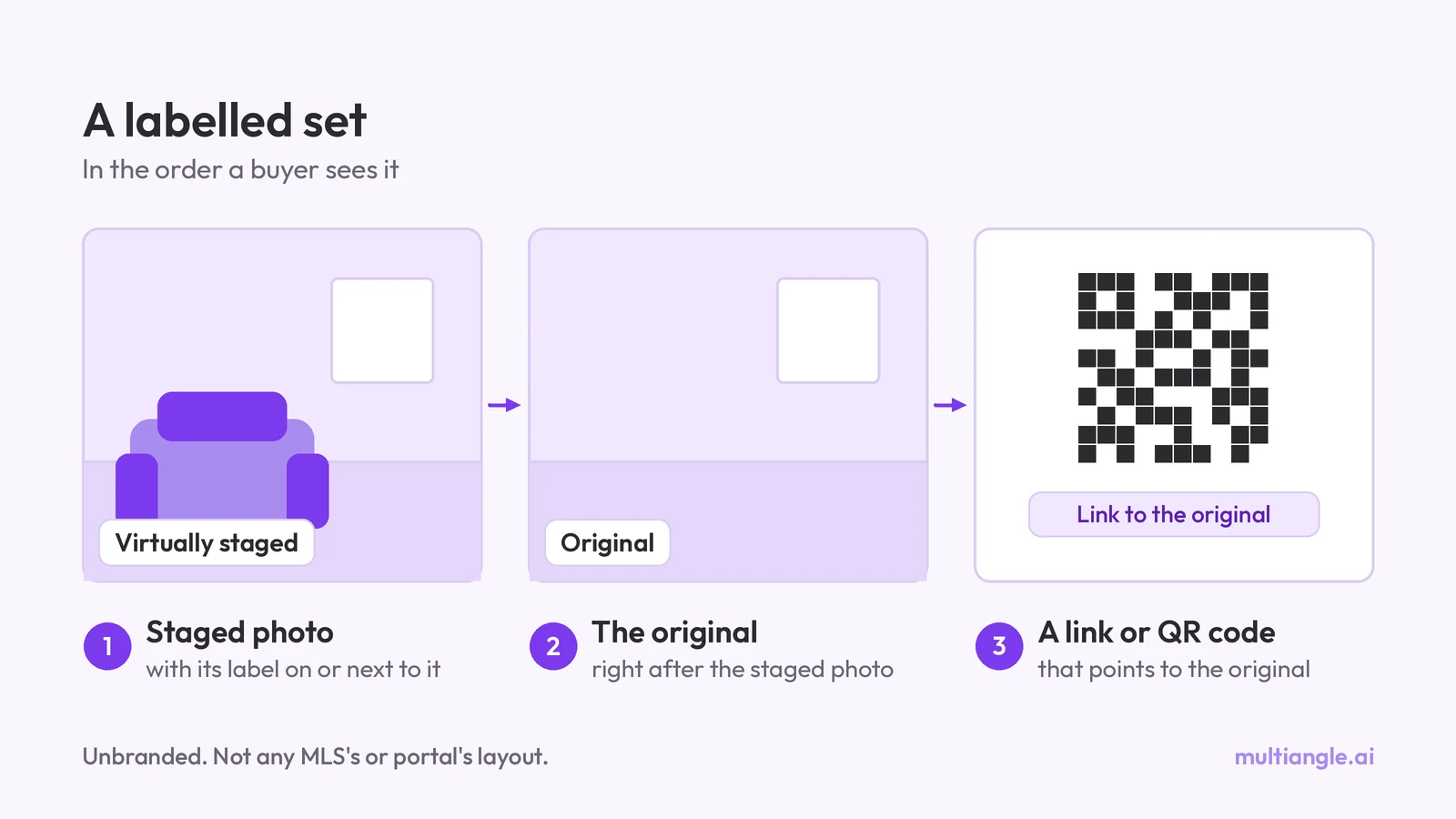
Assume yes. Label every virtually staged photo as staged, keep the unaltered original, and check your MLS's rules, because the requirements vary by MLS and by state. MultiAngle's download includes a labelled copy, a clean copy, and your original with disclosure text, so you have a version for each common case. This is general information, not legal advice.
Two primary sources worth reading:
How the copies map to that: the labelled copy carries the notice on the image; the clean copy is for places where you put the notice next to the image instead; the unaltered original lets buyers see the room as it is. Having the copies doesn't make a listing compliant on its own. Your MLS decides the wording and where it goes.
In our download the label is a dark pill in the bottom-left corner of each labelled copy that reads "Virtually staged". The original and the clean copies carry no text. The wording to publish next to a clean copy is in a DISCLOSURE.txt file in the same ZIP, with a public link to the unaltered photo. Ours read:
Virtually staged. Furniture was added digitally. Unaltered photo: [your share link]
The same file explains which copy to use where. Labelled copies are for MLSs that require a watermark on the photo and for places where a photo travels without its caption. Clean copies are for MLSs that ban text or overlays on photos, with the line above in the remarks instead. Every staged file also carries the IPTC digital source type trainedAlgorithmicMedia in its metadata.
AI staging struggles with small rooms, where furniture can come out too large; with photos that show little floor; with tilted or unusual angles; and with anything it decides to improve, such as a stained floor or a missing light fitting. That last one is misrepresentation, not decoration. MultiAngle adds limits of its own.
We tested a furnished room, made with Nano Banana from the same room: a sofa with a throw, a coffee table, a rug, a floor lamp, a TV on a stand and a stack of boxes. The app read it as a furnished living room and said it would clear it first. In all four results the TV and its stand, the boxes, the lamp, the rug and the coffee table from the input are gone, and nothing from the original furnishing is left behind as far as we can see. The window, the ceiling light, the door and the floor vent stayed where they were. The new layout follows the old one: in every style a sofa stands where the original sofa did, with a coffee table in front of it. This is one test on one made-up room, so check a cleared room against the original with extra care.
Before running, the app warned that little of the floor was visible, which leaves little room for furniture. We ran it anyway. All four results have a level camera and a window that is no longer tilted, and each shows a wide stretch of floor that the photo did not contain. The window also changes size and position from one style to the next, so the four versions are not the same room from the same spot. A buyer comparing the staged image with the original would see a different room. For listings, that is the case to avoid: reshoot the room instead.
The interior and real-estate guide covers the other room tools, and the account and credit FAQ answers the rest. The same one-photo, fixed-set idea for products is in how to get different angles of the same image with AI.
Stage your empty room in 4 styles
Yes, within limits. MultiAngle's Free plan gives 4 credits a month and a staging run costs 4 credits. Spacely lists a free plan with 40 free trial credits (checked 2026-09-26). Free tiers still need the same check against the original.
Start with the rooms buyers look at first, usually the living room and the main bedroom, and any room whose purpose isn't obvious when empty, such as a small second bedroom that could be an office.
Yes. If there's furniture or someone in the photo, MultiAngle clears it first and then stages the room. We tested one furnished room and the furniture was gone in all four results, but compare the result with the original: check that walls, windows and floors match and that nothing was left half-removed. An empty room still gives the cleanest start.
It can. Any AI staging tool may alter windows, fittings or floors. Compare the staged image with the original using the checklist above before you list it.
Yes. Some rules, such as California's, require the unaltered version to be available, and your MLS may too. MultiAngle's download includes your unaltered original and a DISCLOSURE.txt file with the line to publish and a link to the original.
More on this topic: Virtual staging for empty rooms.
Do you have to disclose virtual staging? What California AB 723, CRMLS, Stellar MLS, NAR and Wisconsin say, quoted and dated. General info, not legal advice.

Multi-view images for 3D: the views Meshy, Hunyuan3D-2mv and Tripo take, how to make 8 consistent views from one drawing, and how to check them.
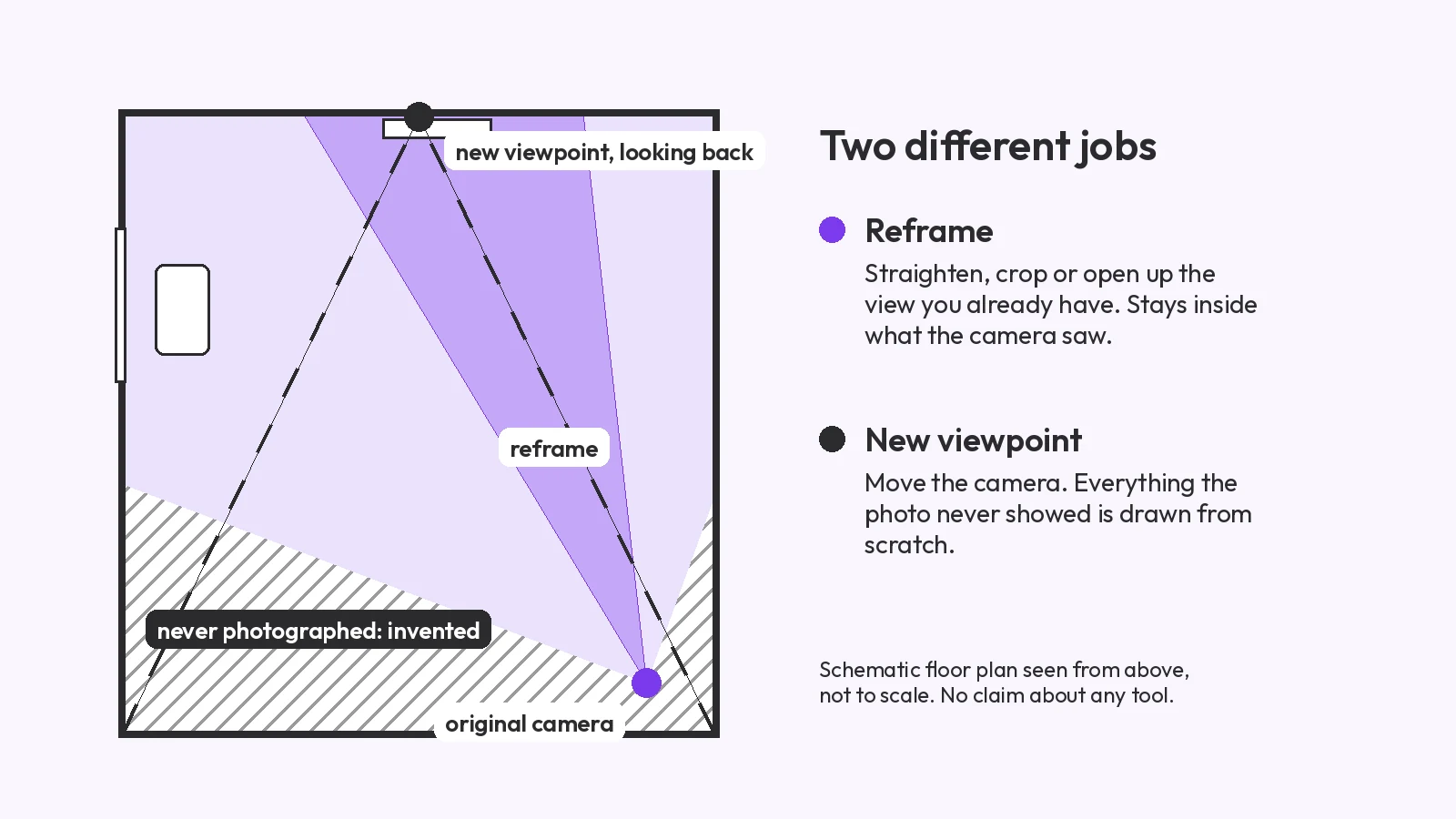
Change the camera angle of a photo with AI: five methods compared, two tested on the same room, and where each one breaks, from reframing to 3D.