Change the camera angle of a photo with AI: 5 methods
Change the camera angle of a photo with AI: five methods compared, two tested on the same room, and where each one breaks, from reframing to 3D.
Prompt a chatbot, move a camera slider, or use a fixed angle set to get multiple angles of one image. We ran two on one product: which stayed consistent.
There are three ways to get different angles of the same image with AI: prompt a general image model for each view, move a camera slider in an angle tool, or upload once to a template that returns a fixed set of angles. Use a slider when you need one exact view, a fixed set when the views have to match, and prompting when it has to be free and you don't mind re-rolling. We ran one product image through two of them, prompting and a fixed set, and checked every view, back included. The slider method is described from its maker's own page, because we did not run one for this post. For which angles a product page actually needs, see the 8 product photography angles.
Key takeaways
Yes. An image model can redraw a subject from a new viewpoint using one photo, but it is not moving a camera. It predicts what the unseen sides probably look like. The side you photographed stays closest to the truth; the back, the underside and anything the photo hid are guesses, and those guesses are where a set falls apart.
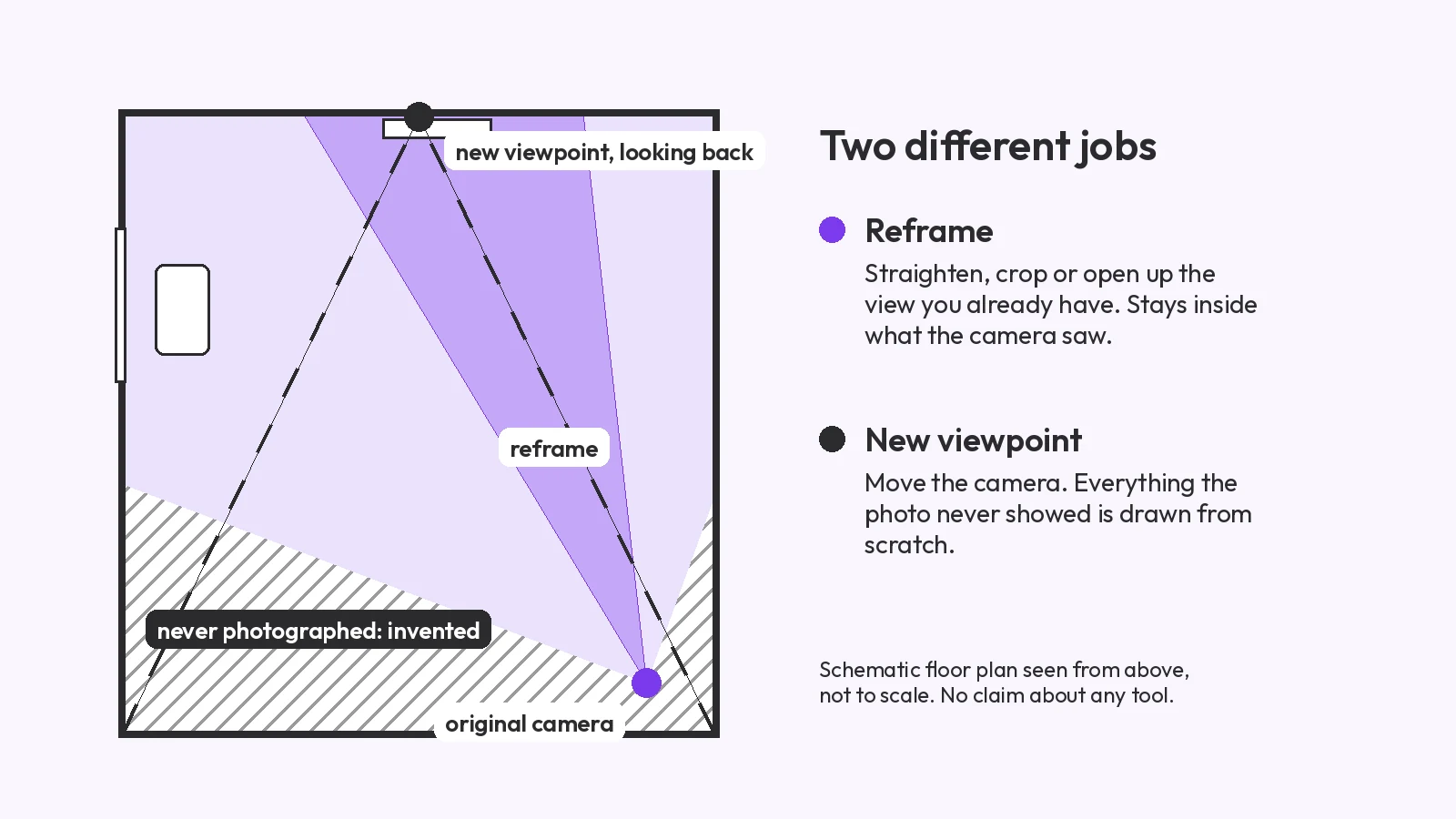
That is also the difference from rotating or cropping. Rotating turns the flat picture; a new angle needs new pixels for surfaces the photo never showed. An essay on the AI Photography Training newsletter (published 2025-11-13, checked 2026-09-26) argues that AI "cannot re-photograph things" and shows a drone view of a palm tree that Gemini 2.5 Flash Image got wrong. It's a fair warning: treat every new angle as a reconstruction you have to check.
If you need a matching set rather than one view, you can turn one photo into a matching set of angles and compare each side with the original yourself. The three methods below differ mainly in who picks the angle and whether the views are made together or one at a time.
Upload the photo to a general image model, such as Google's Nano Banana (Gemini image) or ChatGPT, and ask for one view per prompt. It costs little or nothing and you can describe the view in your own words. But every view is a separate generation, so small differences in colour, shape and logo placement add up across a set.
Google's own Gemini image prompt guide (checked 2026-09-26) has a section on creating new images from different angles. The pattern that helps: name the object, name the view, and list what must not change. For example: "Show this exact sneaker from directly behind. Keep the same colours, laces, sole and lighting, on the same plain background." Then run the same prompt structure for each view so the only thing that changes is the angle.
We ran this with Google's gemini-3.1-flash-image model, called through its API with the input attached, not through a chat app. Each view got one prompt in the pattern above, and the prompts were:
All four views came out on the first generation, so none needed a re-roll. They still changed things. The back view puts a large logo on the heel tab and a dark lining inside the collar, and the input showed neither. The view from above adds a logo on the insole. The side view faces the opposite way to the input and the 3/4 view. The white colour and the lace pattern held across all four.
Angle tools give you controls, usually a rotation slider or a 3D cube, and return one new view per run. They suit the job of getting one precise view, such as a 3/4 shot for a thumbnail, because you set the direction instead of describing it. A full set means one run per angle.
Free options exist. Upsampler's multiple-angles tool runs without an account on a daily allowance, and its own page says it "works best on a single object or character" (checked 2026-09-26). That limit is honest and applies to every method in this post.
We did not run a slider tool on the sneaker, so we have no result to show for this method. What follows is how it works, taken from the tool's own page, not a test. If you try one, check the same four things we check below: logo, colour, proportions and the back.
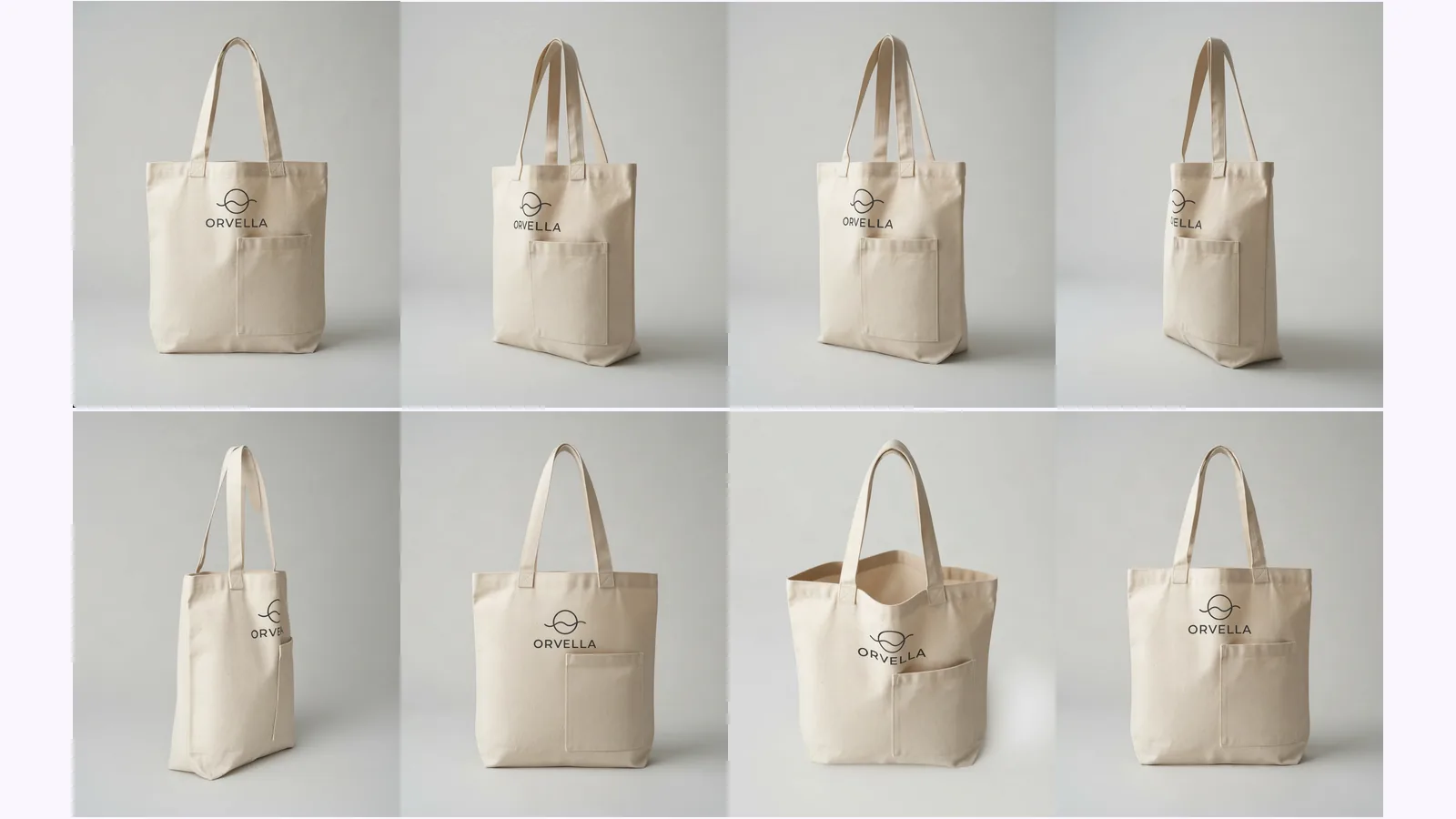
A template tool takes one upload and returns a fixed list of views in one run. MultiAngle's Product turnaround returns 8 views: front, 3/4 left, 3/4 right, left side, right side, back, above and below. Your upload is one of them, so 7 are generated. A full set at one variant per angle costs 7 credits. You can't choose your own angles.
The trade is control for coverage. You get the template's angles and nothing in between, but you get all of them from the same upload, which makes it easy to lay the set side by side and spot the view that doesn't match.
We ran the set once. Five of the seven generated views came back first time; the left side and the back failed, were not charged, and each came out on one retry. The white leather, the sole, the laces and the grey background held across all eight tiles. The back tile is a rear three-quarter view with a plain heel tab, so unlike the prompted back view it added no logo there. The "Below" tile is a low angle from the side, not a view of the sole, so the underside is still not shown.
Consistency is a property of the set, not of the best single image. Check the same four things on every view: the logo, the colour, the proportions and the back. The table shows how each method builds a set and what broke in our test. How a method works predicts where drift appears; only the side-by-side shows how much.
| Method | Who picks the angle | Views per run | How the set is made | Cost basis | What broke in our test |
|---|---|---|---|---|---|
| Prompt a general model | You, in words | One | A separate generation per view | Your chatbot plan or its free tier | Logo held on the side views, but a large new logo appeared on the heel and another on the insole |
| Camera-slider tool | You, with a slider or cube | One | A separate run per view | Free tier or the tool's subscription | Not run in this test |
| Fixed angle set (MultiAngle) | The template | 8, your upload included | One run from one upload | 7 credits per set | No new logos, but the existing logo was redrawn on the 3/4 left, 3/4 right and above views |
On this sneaker, prompting held the logo mark best: on the 3/4 and side views it is the same mark as the input. Its failure was adding things, a large logo on the heel tab and another on the insole. The fixed set added nothing new, but on the 3/4 left, 3/4 right and above views it redrew the logo as a different mark, with broken strokes and a stray stub. Its left side, right side and below views stayed close to the input. So the prompted set was the more faithful on the logo and the less faithful on what the shoe has, and neither set is safe to publish without checking each view against the input. This is one sneaker and one run of each method; it shows where to look, not a ranking.
Every method fails in the same places, because they all invent what the photo never showed. Expect trouble with the back view, text or logos on hidden faces, shiny or see-through materials, tightly cropped inputs, and photos with more than one object. A fixed set adds its own limit: you get the template's angles and nothing else.
On the sneaker, the logo and hidden-side problems appeared in both runs, as the close-ups above show. The other failure modes (reflective materials, tight crops, busy photos) did not apply to this input, and we did not test them.
For what happens between upload and download, see how MultiAngle generates a set. For the wider job of shooting and publishing product images, see our AI product photography guide. If your subject is a character rather than a product, the same fixed-set idea is covered in how to make a character turnaround sheet from one image.
Make a product angle set from one photo
Yes. General image models have free tiers, and some angle tools, such as Upsampler, run without an account on a daily allowance (checked 2026-09-26). Expect to re-roll. MultiAngle's Free plan gives 4 credits a month, which covers part of a product set.
Rotating turns the flat picture you already have. A new angle shows sides of the object the photo never captured, so the AI has to draw them, and that is why they need checking.
Because the photo didn't show it. Every method invents the back from what it can see. A sharp, well-lit, uncropped photo gives the model the most to work from, but the hidden side is still a guess, so check it before you use it.
No. Product turnaround returns a fixed set: front, 3/4 left, 3/4 right, left side, right side, back, above and below. For one custom view, a camera-slider tool is the better choice.
More on this topic: AI angle generator and Different Angles of One Image With AI.
Change the camera angle of a photo with AI: five methods compared, two tested on the same room, and where each one breaks, from reframing to 3D.
Higgsfield Angles lets you aim the camera; MultiAngle returns a fixed set. What each fits, from Higgsfield's pages and our outputs. We did not run Higgsfield.
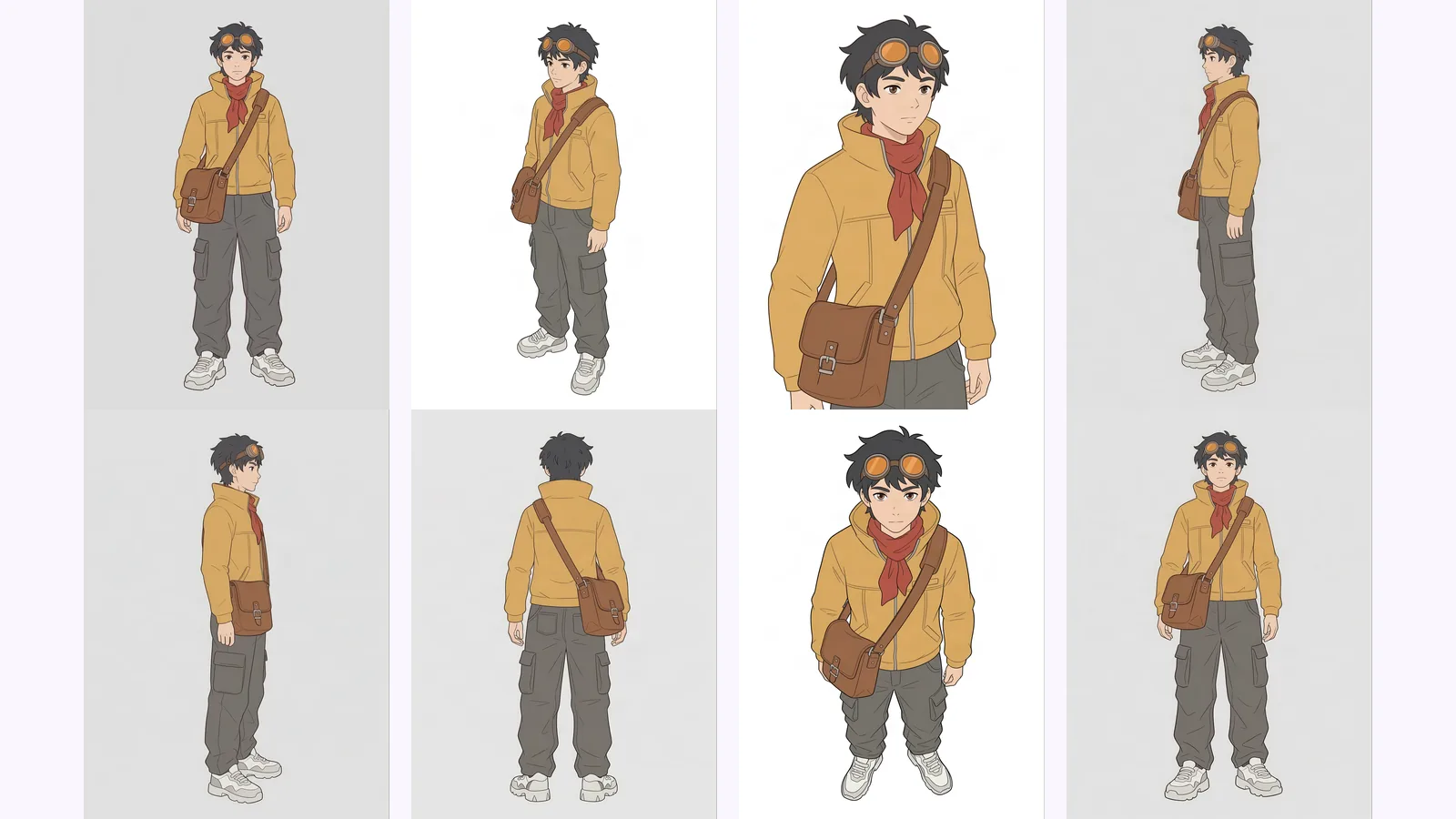
Multi-view images for 3D: the views Meshy, Hunyuan3D-2mv and Tripo take, how to make 8 consistent views from one drawing, and how to check them.