Gallery
Environments, set by set.
Walk through any space. 7 sets from our guides, each labelled for what it is: MultiAngle output, a before and after pair, an input photo or a check.
Environments sets
What is in the Environments gallery
7 sets are live in the Environments gallery, made with Virtual staging (5) and Room angles (2), from 2 guides on the blog. Each set was first published in a guide, so you can read how it was made, and each is labelled for what it is. This page says which template and views made the sets in this world, what each one shows and what to look at before you rely on it.
The guides these sets come from: Virtual staging an empty room: 4 styles, same camera and Change the camera angle of a photo with AI: 5 methods.
How the labels read
- Real MultiAngle output (3 sets): Made in the MultiAngle app and published as it came out.
- Before / after (1 set): The photo we put in, beside what MultiAngle returned from it.
- Check (3 sets): An annotated test of MultiAngle output: what to zoom in on and verify.
Virtual staging
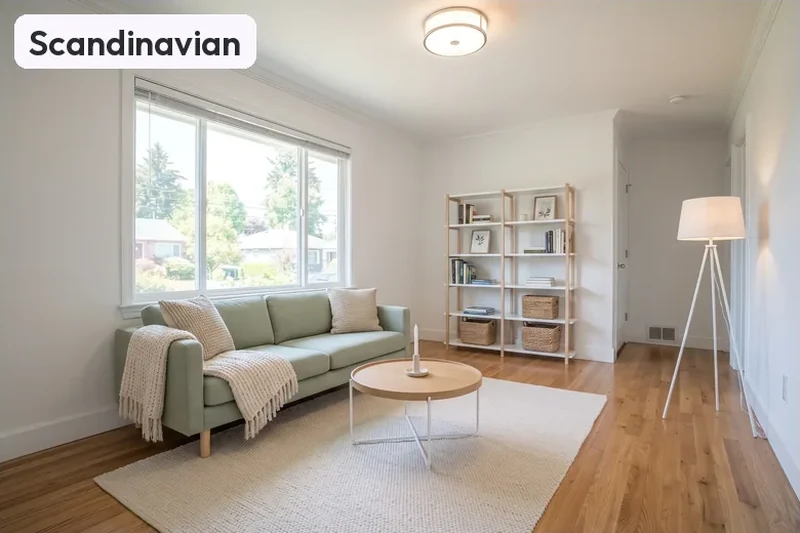
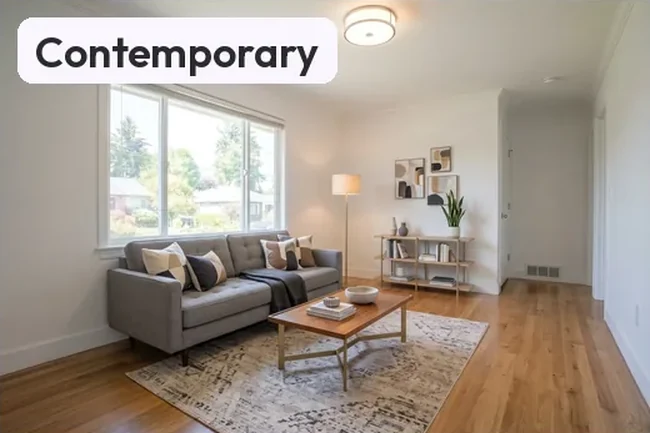
Virtual staging furnishes an empty room in 4 styles (Contemporary, Scandinavian, Mid-Century Modern and Bohemian) from the same camera position, for 4 credits, and its download holds a labelled copy, a clean copy, and your original with disclosure text. Staged pictures are labelled digitally staged. Judge each set on whether the room itself, the walls, windows and camera position, stays unchanged under the furniture.
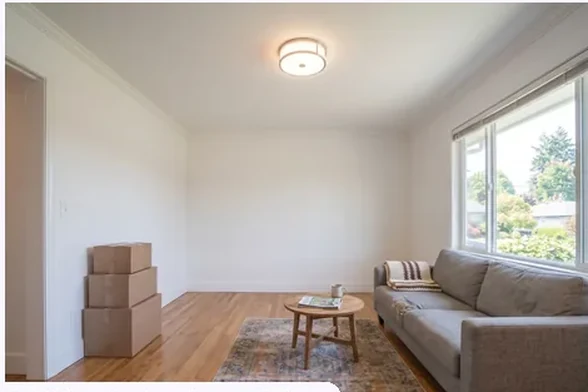
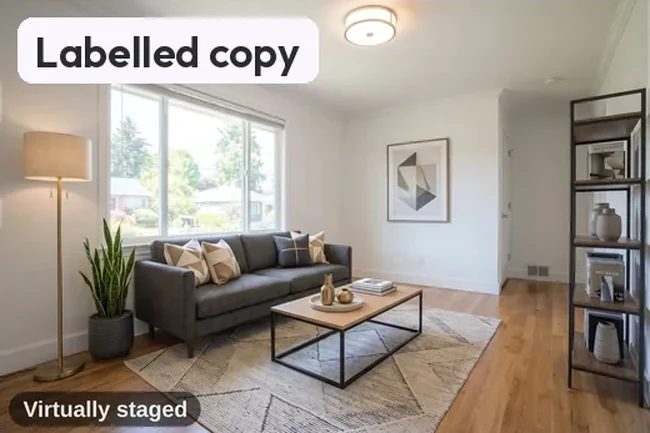
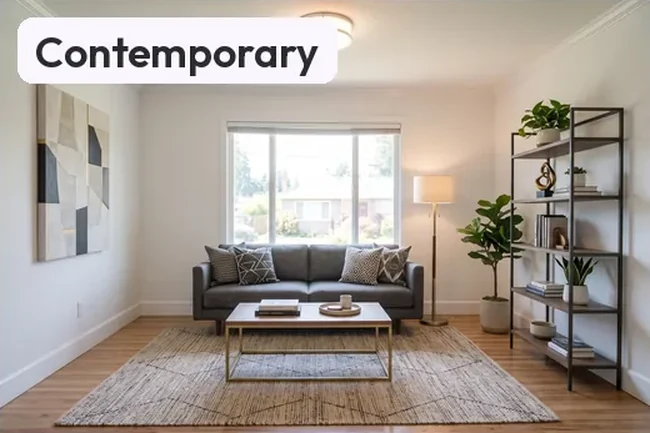
- An empty living room digitally staged in four styles: One empty room and its four digitally staged versions from the same camera position. Only furniture, rugs and decor were added; the room is the same in each. What to look at: Check the edges: the black shelf in Contemporary and the yellow sofa in Mid-Century Modern run into the frame edge. The window, ceiling light and floor are unchanged in every style.
- A furnished living room, cleared and digitally staged in four styles: A room that still had furniture in it. The app cleared it first, then digitally staged four styles: the TV, boxes and old rug are gone and new furniture stands where the old sofa did. What to look at: Compare each style with the furnished tile for anything half-removed. In these results the window, ceiling light, door and floor vent stay put. It is one made-up room, so check a cleared room more carefully than an empty one.
- A staging download: original, labelled copy and clean copy: The three files that matter for disclosure: the unaltered empty room, a digitally staged copy with a Virtually staged label on the image, and the same staged copy without text. What to look at: Only the middle image carries the label, in the bottom-left corner. Having the copies does not make a listing compliant on its own: your MLS sets the wording and where it goes.
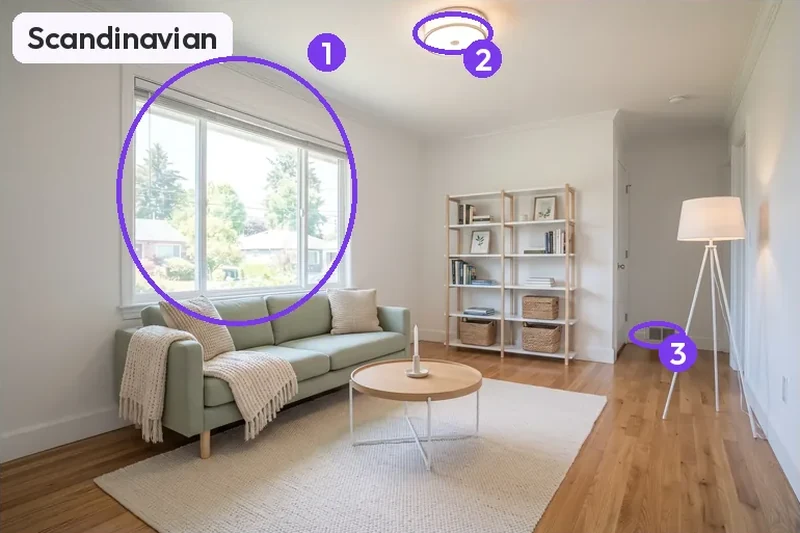
- Staging check: window, ceiling light and floor vent stayed put: The checklist step most staging guides skip: the original empty room next to its digitally staged version, with three fixtures ringed in both so you can see they did not move. What to look at: The ringed window, ceiling light and floor vent line up in both pictures. Do this for your own photo every time: it is one room and one run, not a guarantee. The wall outlet on the left is hidden behind furniture.
- Staging from a tilted photo: the room came back re-framed: A deliberately poor input: tilted, with almost no floor in frame. The four digitally staged results are level and show floor the photo never contained. This is the case to avoid. What to look at: The staged tiles no longer match the input's viewpoint, and the window changes size and position from style to style. A buyer comparing them with the original would see a different room, so reshoot instead of listing these.
Room angles
Room angles takes one room photo and returns 10 fixed views, your photo included: 4 walls, 4 corners, the ceiling and the floor. A full set costs 9 credits. Anything the photo never showed, such as the wall behind the camera, is the model's guess, which is why each set below says what to check.
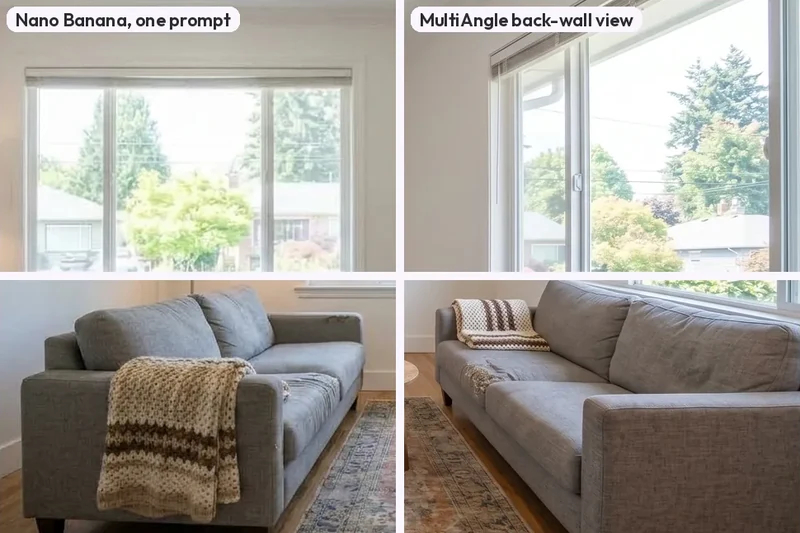
- Reverse room views up close: window, sofa and boxes: A nine-tile check of whether objects survive a reverse view. The middle column is raw Nano Banana output from one prompt, the right column is a Room angles view, the left column is the input. What to look at: Up close the objects hold in both new views: the sofa keeps its knitted throw and worn seat patch, and the boxes keep their order. What changes is where things stand. The Room angles tile shows only part of the window.
- A reverse room view: raw Nano Banana against Room angles: The same living room seen from the opposite end three ways. The middle image is raw Nano Banana output from one written prompt, not MultiAngle; the right image is the Room angles back-wall view. What to look at: Neither reverse view is a photograph of that end of the room. The prompted view moves the window to the far wall and adds a door and a picture; the Room angles view keeps the window on its wall but leaves the far wall blank.
Each set opens on its own page with the full images and a link to the guide it came from. To see how the Environments world works as a whole, read about the Environments templates, or go back to the whole gallery or the other worlds: Products and Avatars.
Other worlds